Day 1
Freie Universität Berlin @ Theoretical Ecology
January 15, 2024


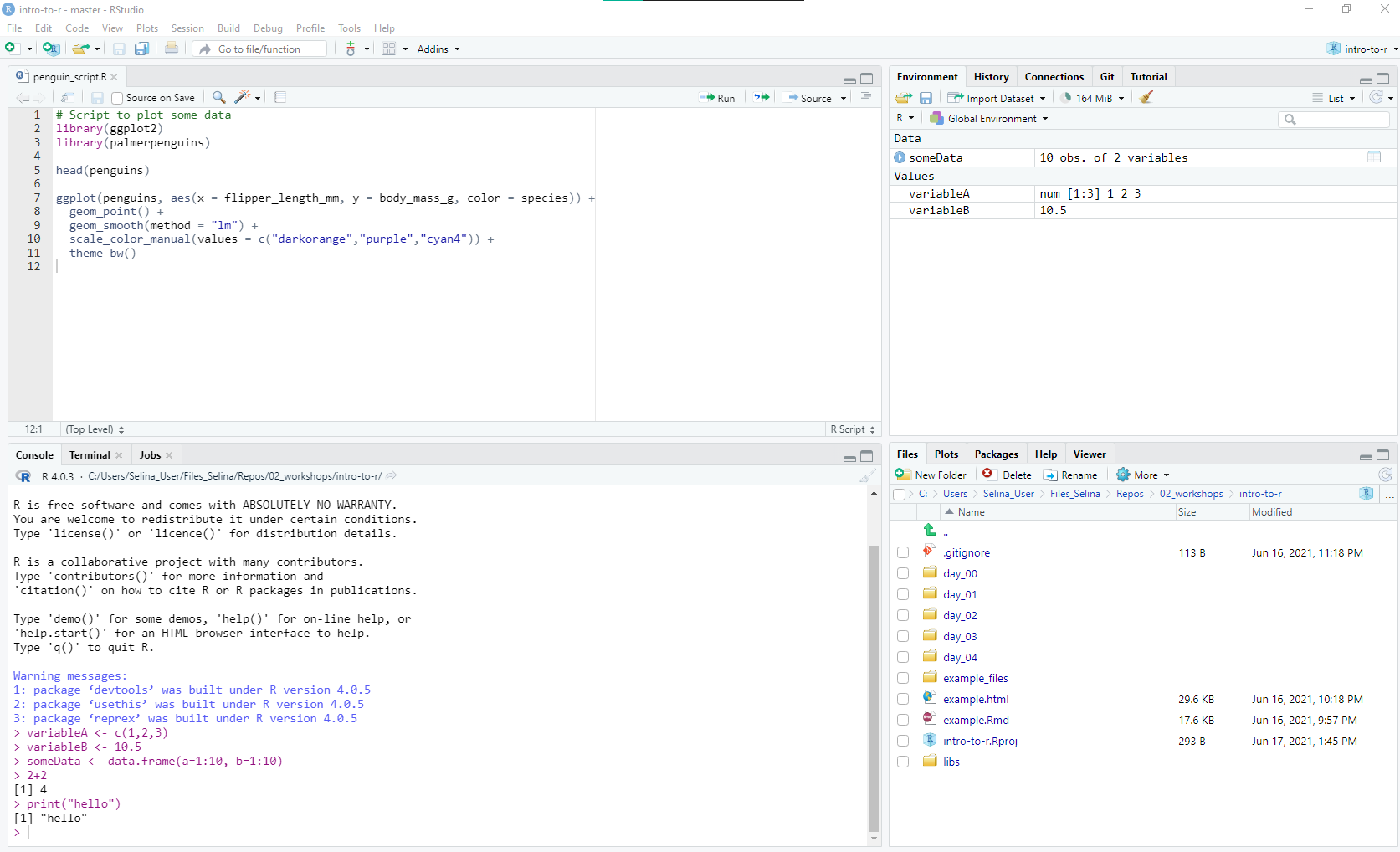
R is the programming language and the program that does the actual work
RStudio is the integrated development environment (IDE)


Summary
You can use R without RStudio but RStudio without R would be of little use
Break down your process into small steps
Write precise instructions in the R language for each step
Tell R to execute these instructions
R will give you the results (or an error message)
Execute R code
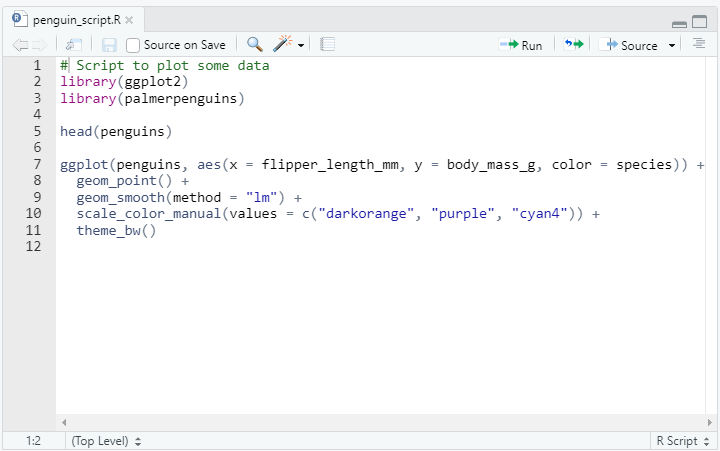
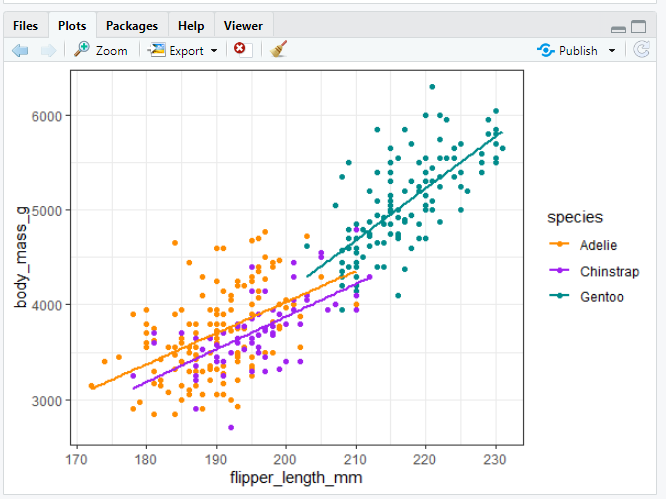
Output from R code in scripts is printed there
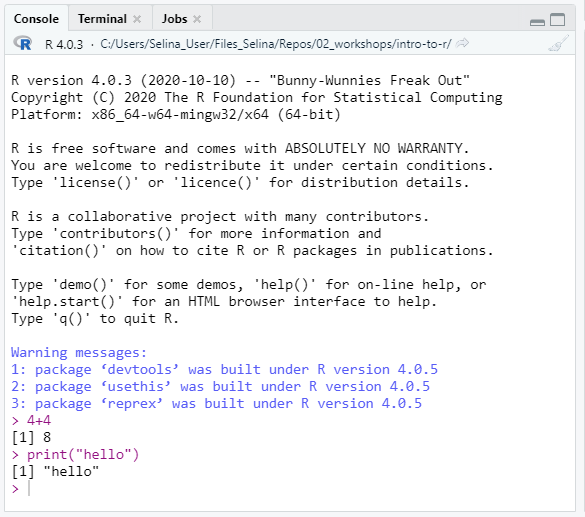
Type a command into the console and execute with Enter/Return
Tip
Use arrow keys to bring back last commands
Write scripts with R code
Scripts are text files with R commands (file ending .R)
Use scripts to save commands for reuse


Summary
Use scripts for all your analysis and for commands that you want to save.
Use console for temporary commands, e.g. to test something.
Shows objects currently present in the R session
Is empty if you start R

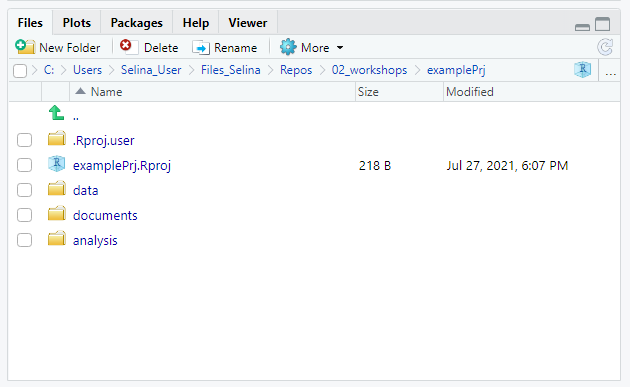
Similar to Explorer/Finder
Browse project structure and files
Practical if you don’t want to switch between File Explorer and RStudio all the time

How to use RStudio to organize your projects
Advantages of using RStudio projects
Create a project from scratch:

RStudio will now create and open the project for you.

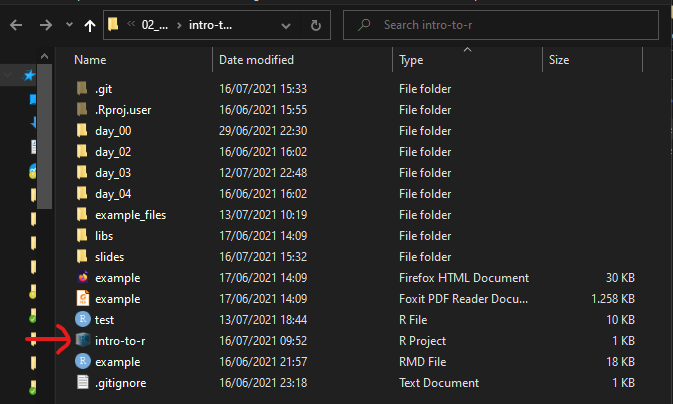
To open an RStudio project from your file explorer/finder, just double click on the .Rproj file
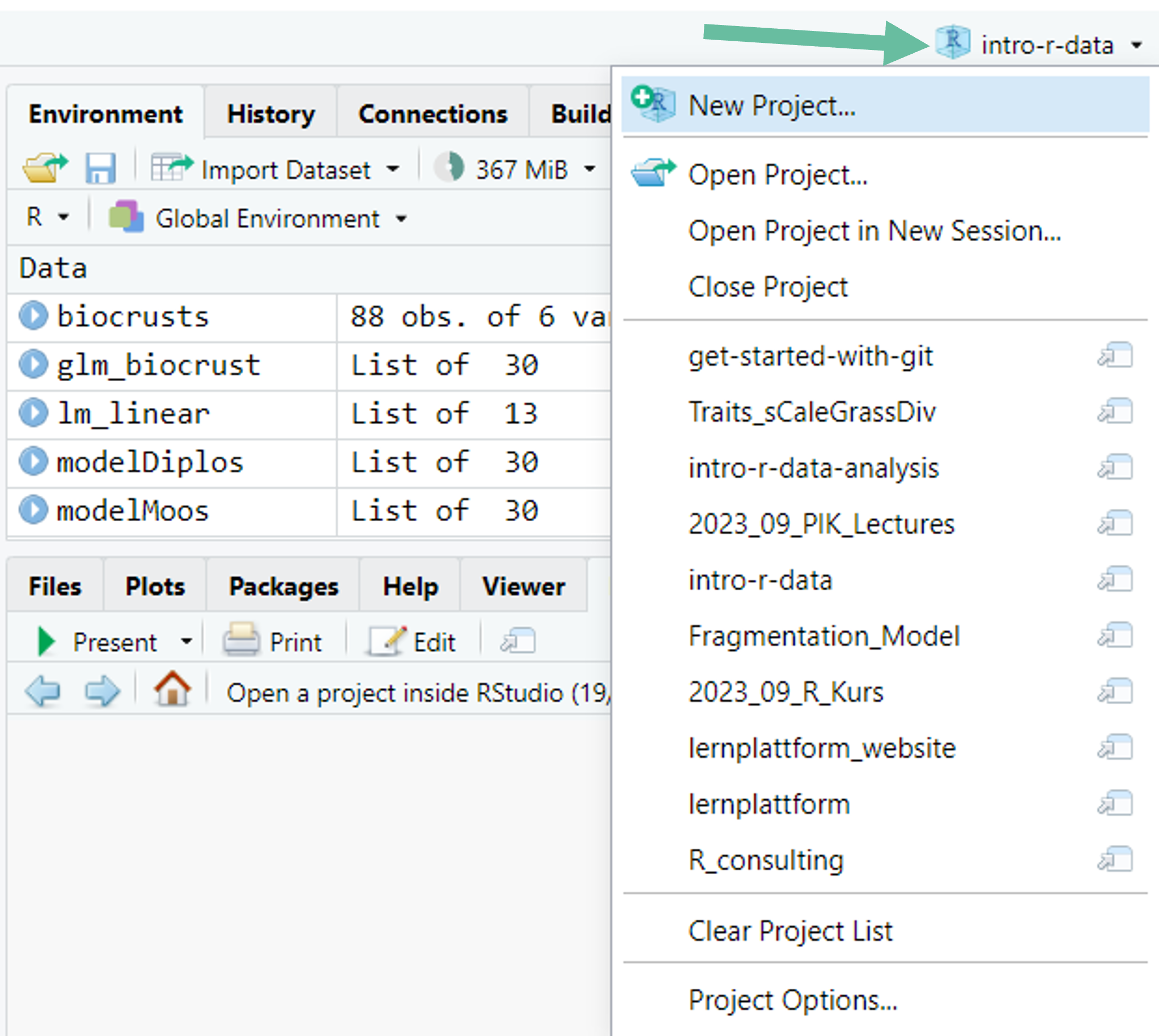
To open an RStudio project from RStudio, click on the project symbol on the top right of R Studio and select the project from the list.
Learn the most important keyboard shortcuts of R Studio.
Find all shortcuts under Tools -> Keyboard Shortcuts Help
| Equal to |
==
|
| Not equal to |
!=
|
| Less than |
<
|
| Greater than |
>
|
| Less or equal than |
<=
|
| Greater or equal than |
>=
|
2 == 2[1] TRUE
2 != 2[1] FALSE
33 <= 32[1] FALSE
20 < 20[1] FALSE
| Not |
!
|
|
|
|
!TRUE[1] FALSE
!(3 < 1)[1] TRUE
| Not |
!
|
| And |
&
|
|
(3 < 1) & (3 == 3) # FALSE & TRUE = FALSE[1] FALSE
(1 < 3) & (3 == 3) # TRUE & TRUE = TRUE[1] TRUE
(3 < 1) & (3 != 3) # FALSE & FALSE = FALSE[1] FALSE
| Not |
!
|
| And |
&
|
| Or |
|
|
(3 < 1) | (3 == 3) # FALSE | TRUE = TRUE[1] TRUE
(1 < 3) | (3 == 3) # TRUE | TRUE = TRUE[1] TRUE
(3 < 1) | (3 != 3) # FALSE | FALSE = FALSE[1] FALSE
# this
data<-read_csv("data/my-data.csv")
# is the same as this
data <-
read_csv( "data/my-data.csv" )There are good practice rules however -> More on that later
RStudio will (often) tell you if something is incorrect
radius <- 5
# create a variable
radius <- 5
# use it in a calculation and save the result
# pi is a built-in variable that comes with R
circumference <- 2 * pi * radius
# change value of variable radius
radius <- radius + 1# just use the name to print the value to the console
radius There are 6 so-called atomic data types in R. The 4 most important are:
Numeric: There are two numeric data types:
Double: can be specified in decimal (1.243 or -0.2134), scientific notation (2.32e4) or hexadecimal (0xd3f1)
Integer: numbers that are not represented by fraction. Must be followed by an L (1L, 2038459L, -5L)
Logical: only two possible values TRUE and FALSE (abbreviation: T or F - but better use non-abbreviated form)
Character: also called string. Sequence of characters surrounded by quotes ("hello" , "sample_1")
Vectors are data structures that are built on top of atomic data types.
Imagine a vector as a collection of values that are all of the same data type.
Image from Advanced R book
Use the function c() to combine values into a vector
The : operator creates a sequence between two numbers with an increment of (-)1
1:10 # instead of c(1, 2, 3, 4, 5, 6, 7, 8, 9, 10) [1] 1 2 3 4 5 6 7 8 9 10
c()
Be aware of implicit type conversion when combining vectors of different types
# integer + logical -> integer (same with double + logical)
c(int_var, lgl_var)[1] 1 45 234 1 1 0
# integer + character -> character (same with double + character)
c(int_var, chr_var)[1] "1" "45" "234" "These are" "just"
[6] "some strings"
# logical + character -> character
c(lgl_var, chr_var)[1] "TRUE" "TRUE" "FALSE" "These are" "just"
[6] "some strings"
Let’s create some vectors to work with.
# list of 10 biggest cities in Europe
cities <- c("Istanbul", "Moscow", "London", "Saint Petersburg", "Berlin",
"Madrid", "Kyiv", "Rome", "Bucharest", "Paris")
population <- c(15.1e6, 12.5e6, 9e6, 5.4e6, 3.8e6, 3.2e6, 3e6, 2.8e6, 2.2e6, 2.1e6)
area_km2 <- c(2576, 2561, 1572, 1439,891,604, 839, 1285, 228, 105 )Divide population and area vector to calculate population density in each city:
population / area_km2 [1] 5861.801 4880.906 5725.191 3752.606 4264.871 5298.013 3575.685
[8] 2178.988 9649.123 20000.000
The operation is performed separately for each element of the two vectors and the result is a vector.
Same, if a vector is divided by vector of length 1 (i.e. a single number). Result is always a vector.
mean_population <- mean(population) # calculate the mean of population vector
mean_population[1] 5910000
population / mean_population # divide population vector by the mean [1] 2.5549915 2.1150592 1.5228426 0.9137056 0.6429780 0.5414552 0.5076142
[8] 0.4737733 0.3722504 0.3553299
We can also work with relational and logical operators
population > mean_population [1] TRUE TRUE TRUE FALSE FALSE FALSE FALSE FALSE FALSE FALSE
The result is a vector containing TRUE and FALSE, depending on whether the city’s population is larger than the mean population or not.
Logical and relational operators can be combined
# population larger than mean population OR population larger than 3 million
population > mean_population | population > 3e6 [1] TRUE TRUE TRUE TRUE TRUE TRUE FALSE FALSE FALSE FALSE
Check whether elements occur in a vector:
cities == "Istanbul" [1] TRUE FALSE FALSE FALSE FALSE FALSE FALSE FALSE FALSE FALSE
The %in% operator checks whether multiple elements occur in a vector.
%in% always returns a vector of the same length as the vector on the left side
# for each element of to_check, check whether that element is contained in cities
to_check %in% cities[1] TRUE TRUE TRUE
You can use square brackets [] to access specific elements from a vector.
The basic structure is:
vector [ vector of indexes to select ]
cities[5][1] "Berlin"
# the three most populated cities
cities[1:3] # same as cities[c(1,2,3)][1] "Istanbul" "Moscow" "London"
# the last entry of the cities vector
cities[length(cities)] # same as cities[10][1] "Paris"
Change the values of a vector at specified indexes using the assignment operator <-
Imagine for example, that the population of
You can also index a vector using logical tests. The basic structure is:
vector [ logical vector of same length ]
mega_city <- population > mean_population
mega_city [1] TRUE TRUE TRUE FALSE FALSE FALSE FALSE FALSE FALSE FALSE
Which are the mega cities?
cities[mega_city] # or short: cities[population > mean_population][1] "Istanbul" "Moscow" "London"
Return only the cities for which the comparison of their population against the mean population is TRUE
Introduction to R
<-, e.g.radius <- 5"hello")23L) and double (2.23)TRUE and FALSE)# By index
v[3]
v[1:4]
v[c(1,5,7)]
# Logical indexing with 1 vector
v[v > 5]
v[v != "bird" | v == "rabbit"]
v[v %in% c(1,2,3)] # same as v[v == 1 | v == 2 | v == 3]
# Logical indexing with two vectors of same length
v[y == "bird"] # return the value in v for which index y == "bird"
v[y == max(y)] # return the value in v for which y is the maximum of yIntroduction to R
Comments in R
#is a commentCtrl/Cmd + Shift + R)